Command Center is the home of the Content section — one screen that tells you exactly what needs attention across your entire content engine, and lets you jump straight to the fix.
A real result
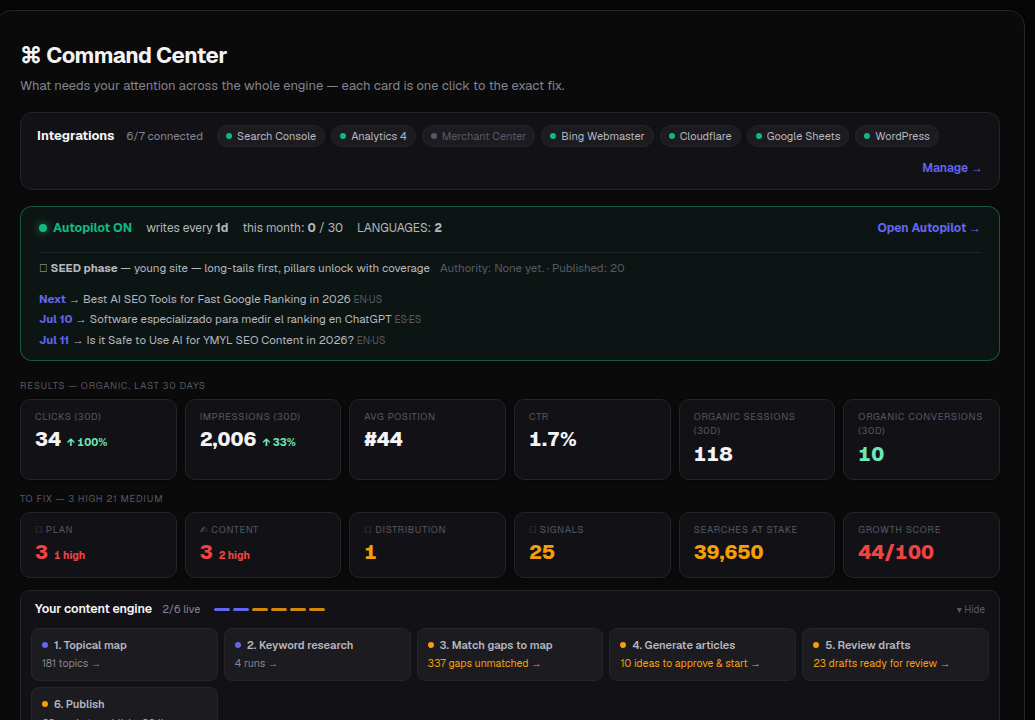
Once your content engine is running, Command Center shows your live pipeline stage-by-stage, your integrations, Autopilot status, and a queue of what's publishing next — plus real organic performance pulled straight from Search Console and GA4.
What you'll see
- Integrations — how many of your 7 possible sources (Search Console, Analytics 4, Merchant Center, Bing Webmaster, Cloudflare, Google Sheets, WordPress) are connected.
- Autopilot status — whether it's on, how often it writes, and how many languages it covers.
- Results — organic, last 30 days — clicks, impressions, average position, CTR, sessions and conversions, pulled from your connected accounts.
- To fix — a live count of issues across Plan, Content, Distribution and Signals, so you know where the fires are.
- Your content engine — the six-stage pipeline (Topical map → Keyword research → Match gaps to map → Generate articles → Review drafts → Publish), each card showing exactly how many items are waiting at that stage.
- Growth Score — a single number summarizing your content and visibility health.
How to use it
- Open Content ▸ Command Center for your brand.
- Check Integrations first — connect anything showing as not connected so your data is complete.
- Review the six-stage pipeline and click into whichever stage has the most items waiting.
- Use the "To fix" counts to prioritize: high-severity issues first.
- Turn on Autopilot once you're happy with your topical map, so new articles keep publishing on schedule.
Tip: Think of Content as a flow: discover topics, create the content, act on it, then measure. Command Center ties every stage together in one place — start here whenever you're not sure what to do next.